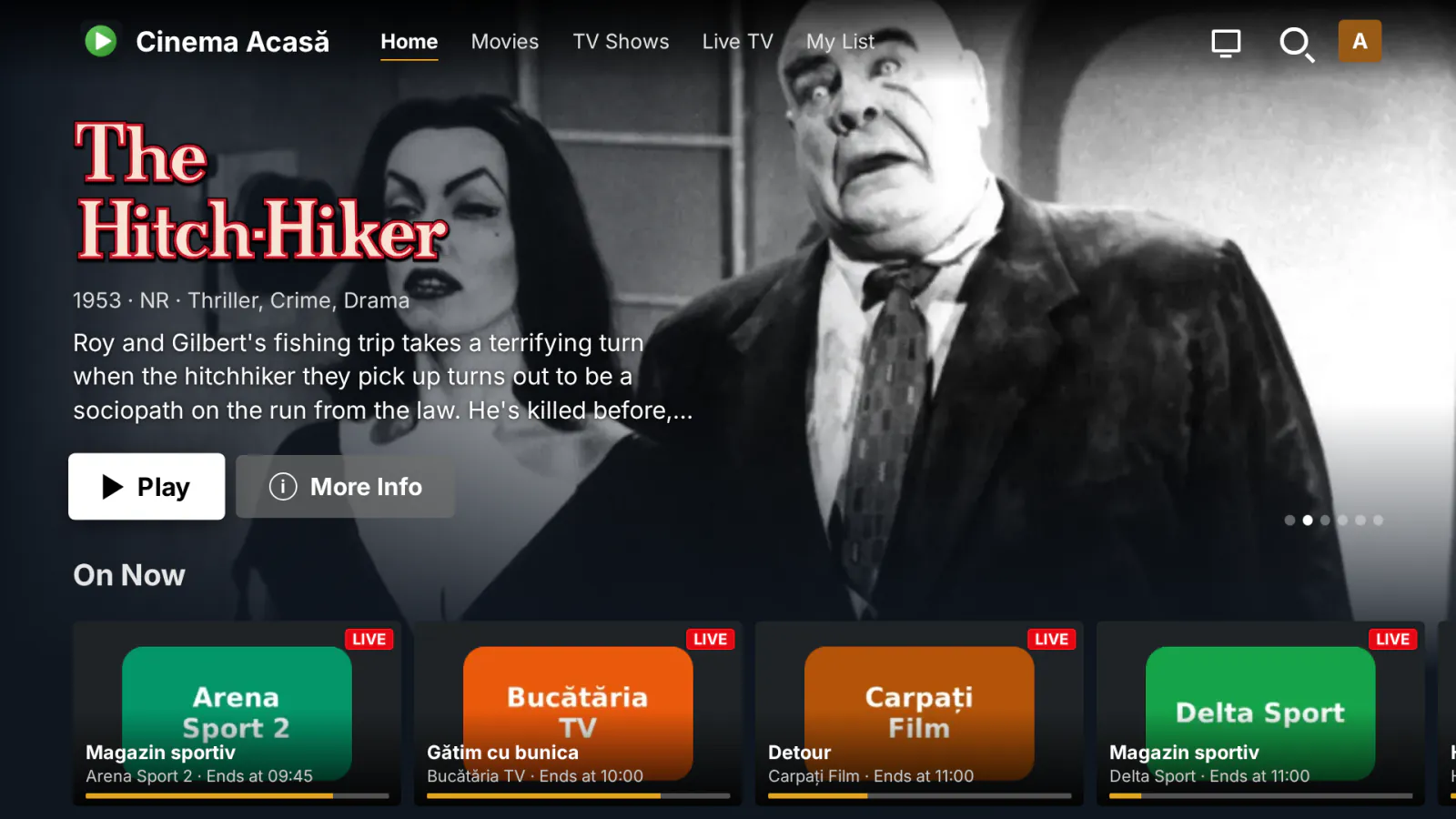
MediaLab TV is the app for the TVs that have no Jellyfin app: older models and any TV with a web browser. Open its address once in the TV browser, save it as a favorite, and from then on the TV signs in by itself and opens a Netflix-style interface made for the remote. It carries your name, logo, colors and address, not ours.
What it does
- Opens in the TV browser and works with the remote. A TV mode is chosen by itself on Tizen, webOS, Android TV, Google TV and Philips TVs (or switched from the profile menu): sized for 720p, 1080p and 4K screens, with safe margins and a large focus. Arrows, OK, Back (with a question before leaving), the media, color, channel and number keys work, and so does the LG Magic Remote pointer.
- Its own interface: a rotating banner and rows for Continue Watching, Next Up, recently added movies and series, each library, My List, collections, genres and live TV (on now, movies tonight, sports, kids, coming up); title pages with backdrop, ratings, cast, seasons and episodes, similar titles and the local trailer; grids; search with an on-screen keyboard; profiles ("Who's watching?").
- Its own player: audio tracks, subtitles, resume, next episode, and the Skip intro / recap / credits buttons (Jellyfin's Media Segments). Playback is reported to Jellyfin, so it shows in Continue Watching everywhere. With the setting "After sign-in, open" you can send users to Jellyfin Web instead.
- Full screen: a header button (where the browser allows it) and the F key; on a TV, or when opened from Quick Connect, the first OK / click switches to full screen (since 1.2.1).
- Signs in by itself with the account remembered on the TV.
- "Sign in with your phone" with Jellyfin's own Quick Connect: the TV shows the 6-digit code, a signed-in user approves it on the phone. With Quick Connect by MediaLab installed, the TV also shows a QR code that leads to the approval page.
- "New account (from the phone)": with Registration by MediaLab, the TV shows a QR code to the sign-up page and a code to type in the form; the TV signs in by itself once the account is active, also after paying with Cashier by MediaLab.
- Your branding, set in the plugin page: the app name, the short name shown in the server's device list, a line under the name (for example your website), the footer, the accent and background colors, the language (automatic from the TV, English or Romanian) and your logo (PNG or SVG). A preview shows the result before you save.
- Your own address: besides
/MediaLabTv/, a short path such as/web/tv/(the default), served by the plugin itself. Nothing is written into Jellyfin's files, so there is nothing to redo after Jellyfin updates. It works on official Jellyfin and on medialab Server, where the app also gets an entry in the users' menu. A path that already exists in the web interface is never covered. - Without a valid license, TVs see only a neutral "Service unavailable" screen, in English and Romanian, without your name or logo.
Limits
- MediaLab TV is not an app from the TV's app store: it is a web app opened in the TV browser. What a TV can play depends on its browser; the server transcodes what the browser cannot play.
- Signing in with the phone and new accounts use Jellyfin's Quick Connect, which must be turned on (Dashboard → General). Without it, the TV shows only the usual username and password sign-in.
- It has been tested in an emulated Philips TV browser; other TV brands are handled in the code but not yet tested on real TVs.
What it sends where
- The TV talks only to your Jellyfin server: pages, images and data all come from it, and the page blocks anything from elsewhere (no web fonts, no CDN, no outside trailers).
- On the TV (the browser's storage): the server's sign-in token, the user name, the device id and the chosen profiles, not the password. The token is checked at every start; if it was revoked, the TV shows the sign-in form. The setting "Remember the password on TVs" (off by default) keeps the password only for TVs that keep losing the token. A password saved by version 1.1 is used once, if needed, then deleted.
- On the server: the branding settings and the logo.
- To medialab.works: only the license check. The payment QR code on the plugin's License page is generated locally, in the page (since 1.2.1); the payment link is not sent to any third-party QR service.
Full details for every product, including what stays on your server: Licensing, privacy and compatibility.
Client compatibility
- MediaLab TV is itself the client: a web app for TV browsers, with its own interface and player. Tested in an emulated Philips TV browser.
- Not tested yet on real TVs: Samsung (Tizen), LG (webOS), Android TV / Google TV and real Philips sets are handled in the code (TV mode, remote keys, Magic Remote pointer), but not checked on the devices.
- What a TV can play depends on its browser; the server transcodes what the browser cannot play.
- The phone side (sign-in with the phone, new account, payment) runs in the phone's browser: Jellyfin's Quick Connect and, when installed, the pages of Quick Connect, Registration and Cashier by MediaLab.
Requirements
- Jellyfin Server 12.2 or newer, official or medialab Server.
- A TV with a web browser.
- Quick Connect turned on in Jellyfin, for signing in with the phone and new accounts.
- Optional: Quick Connect by MediaLab, Registration by MediaLab and Cashier by MediaLab.
Licensing
The plugin is open source (GPL-3.0). The ready-to-install builds are public, like the source code. What you buy is the subscription: the license to use the plugin on one Jellyfin server, the updates your plan includes, and support: every update while the subscription is active, through your private plugin repository, and help when something does not work. The plugin checks the subscription key once a day; without a valid subscription the TVs see the neutral screen until you renew (nothing is deleted). Monthly, yearly or lifetime (lifetime includes one year of updates), or included in the Jellyfin bundle. 30-day free trial.
Source code. For every release, the complete corresponding source code is public, next to the build, in the changelog, and also in your account (Account → Licenses, Source code); each archive contains the full GPL-3.0 text (LICENSE). If you need the source of a version you can no longer download, ask us and we send it. See section 10 of the EULA.
Our own code, written by MediaLab Works. Third-party code: the player includes hls.js 1.5.20 (Apache-2.0), listed in THIRD-PARTY-NOTICES.txt. The TV app is the same as in MediaLab TV for Emby.